
Documentation contents
AarView · Get started
Evaluation virtual machine
Evaluate AarView on your own hypervisor: import the virtual machine, configure it in a few screens, sign in, connect your first hosts. No Internet access needed.
On this page
The evaluation virtual machine holds AarView and the engines it reads (an event store and an endpoint manager), ready for your first hosts. You import it into your hypervisor, answer a few screens, and the installation runs on its own, with no Internet access at all. At the end, you open AarView in your browser.
It is for evaluating AarView. For a production installation, see Installation.
Once your request is reviewed, we send you a personal download link, valid for a few days, and the checksums to verify the files.
What you need
- A hypervisor: VMware (Workstation or ESXi), VirtualBox, Hyper-V, Proxmox or KVM.
- For the machine: 4 virtual CPUs, 8 GB of memory, 60 GB of disk.
- An internal network, with a private address for the machine, by DHCP or static. It needs no Internet access, and refuses a public address.
- A computer on that network, with a browser, to open AarView.
- Access to the machine’s screen in your hypervisor, for the setup screens.
The files
| File | For |
|---|---|
aarview-eval-<version>.ova | VMware, VirtualBox |
aarview-eval-<version>.vhdx | Hyper-V |
aarview-eval-<version>.qcow2 | Proxmox, KVM |
SHA256SUMS | the checksums of the three files |
Check the downloaded file before importing it. On Linux, in the folder of the files: sha256sum --ignore-missing -c SHA256SUMS. On Windows, in PowerShell: Get-FileHash .\aarview-eval-<version>.vhdx, then compare with the matching line of SHA256SUMS.
Nothing secret is in the image: every certificate, password and key is created at first start, on the machine. Two copies of the machine never share a secret.
1. Import the machine
- VMware Workstation: File, Open, then the
.ovafile. ESXi: Create / Register VM, Deploy a virtual machine from an OVF or OVA file. - VirtualBox: File, Import Appliance, then the
.ovafile. - Hyper-V: New Virtual Machine, Generation 1, 8192 MB of memory, a network adapter on your internal network, and “Use an existing virtual hard disk” with the
.vhdxfile. Before starting it, set its processors to 4 in its settings. - Proxmox: create a machine with no disk (4 cores, 8 GB), import the
.qcow2file as a disk of that machine (qm importdisk), attach it, and make it the boot disk. - KVM (libvirt): create the machine from the existing disk, for example
virt-install --import --name aarview-eval --memory 8192 --vcpus 4 --disk aarview-eval-<version>.qcow2 --os-variant ubuntu24.04and the network of your choice.
In every case, connect the network adapter to an internal network of your organisation.
2. Start and configure
Start the machine and open its screen in the hypervisor. The setup screens follow one another, in your language. The arrows choose, Enter confirms, Tab moves between buttons. The screens below are shown in French; choose English on the first one.
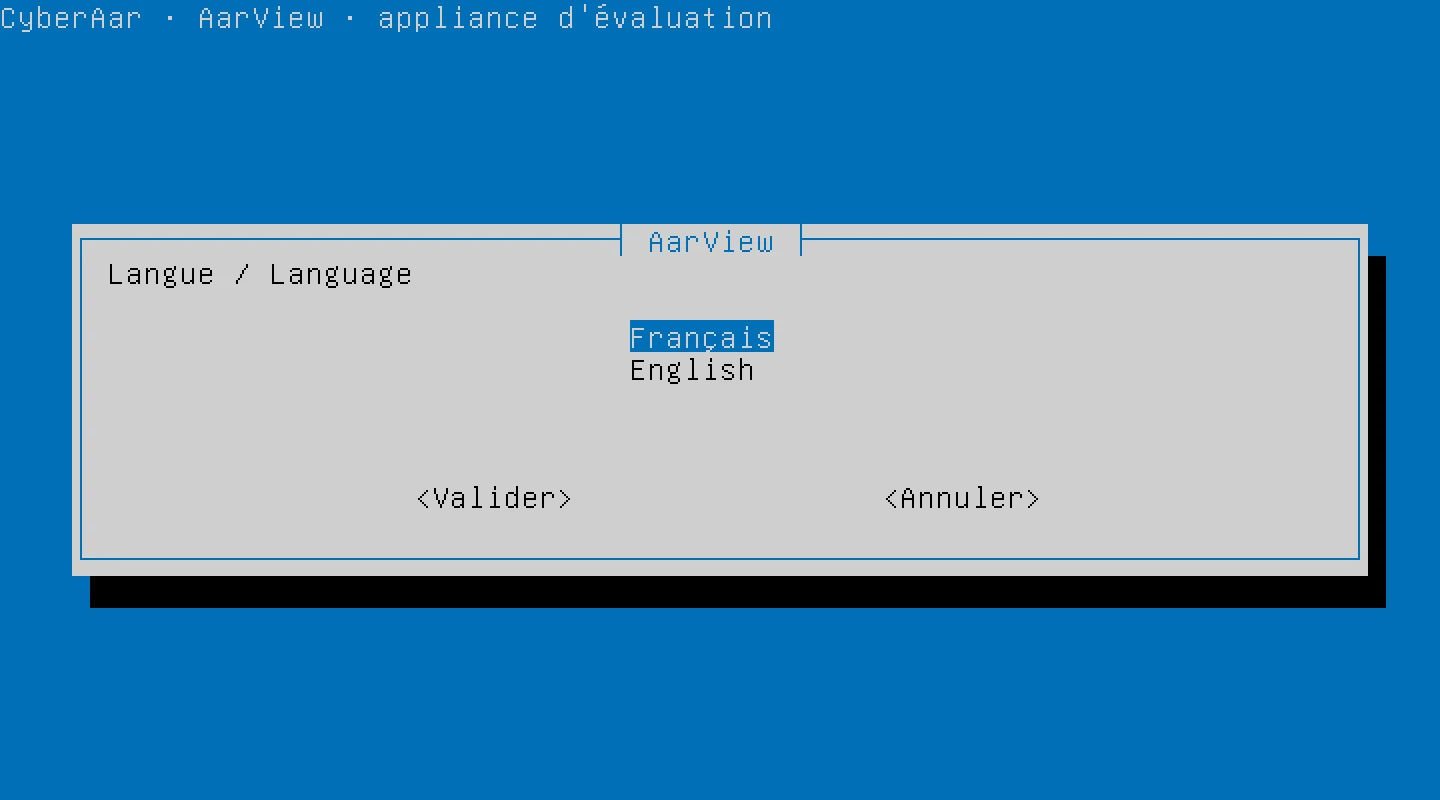
- Language: French or English.
- Welcome: a few setup screens, then 10 to 20 minutes of installation, offline.
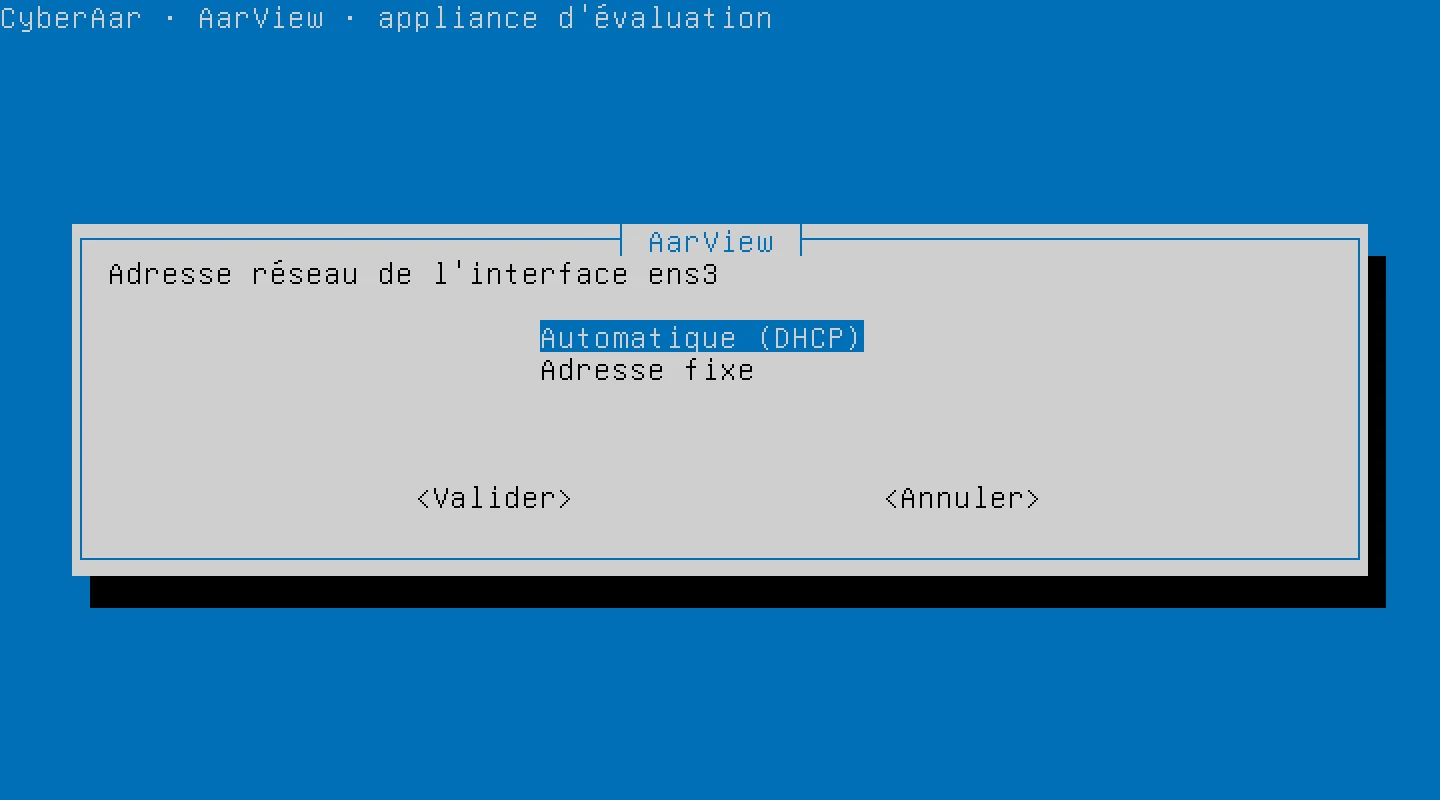
- Network: automatic address (DHCP) or static address, with the prefix (for example
10.20.0.10/24), the gateway and the DNS servers. An address that is not private is refused, and the screen says so. - Hostname:
aarview-evalby default. - Time servers (NTP) of your network. Keep the proposed value if you have none.
- Time zone.
- Organisation name.
- Administrator e-mail: it will be the sign-in name for AarView.
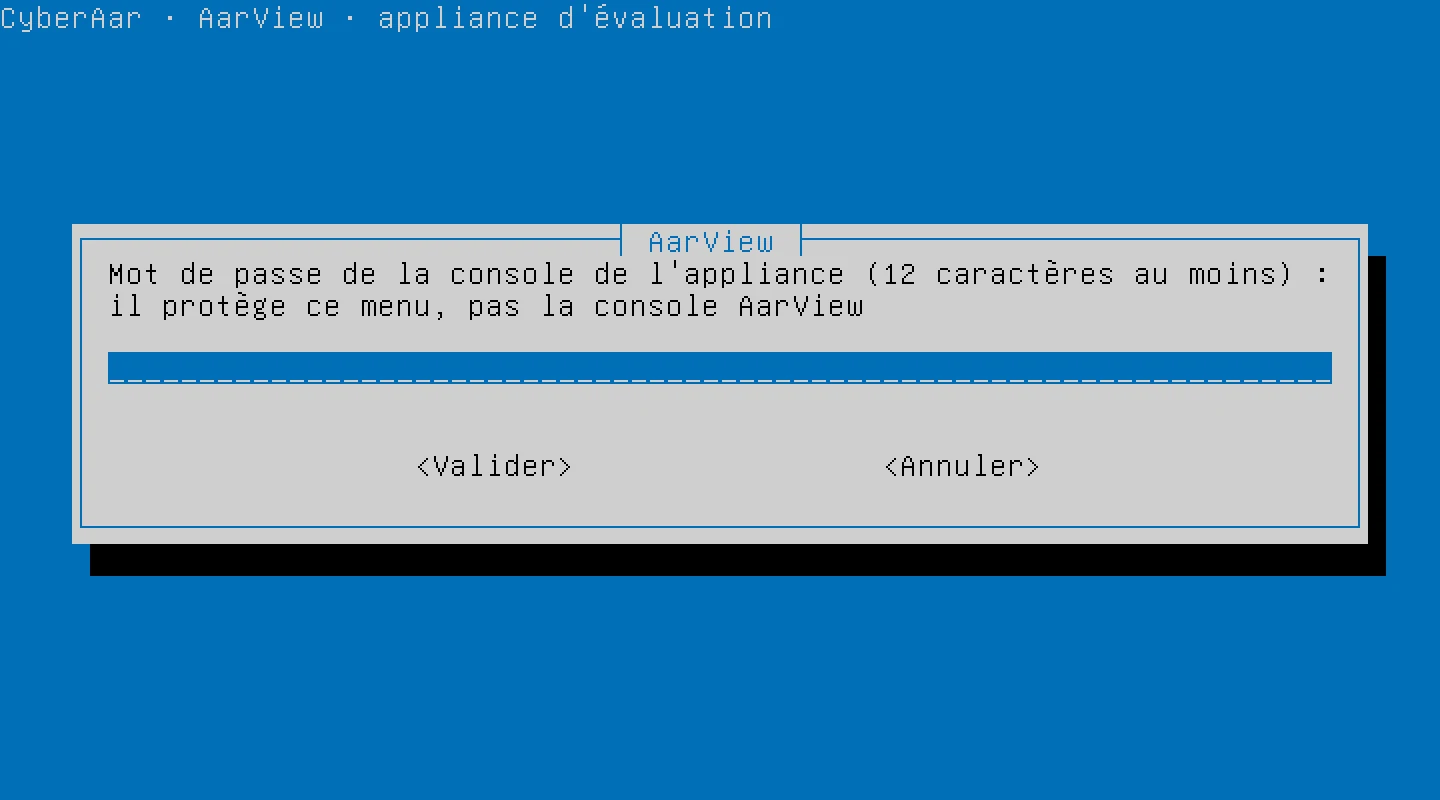
- Password of the machine’s console, at least 12 characters. It protects the machine’s menu (see below), not AarView.
- Password of the AarView administrator, at least 12 characters: the one you will sign in with in the browser.
- Summary: nothing is changed before you agree. “No” changes nothing; restart the machine to start again.
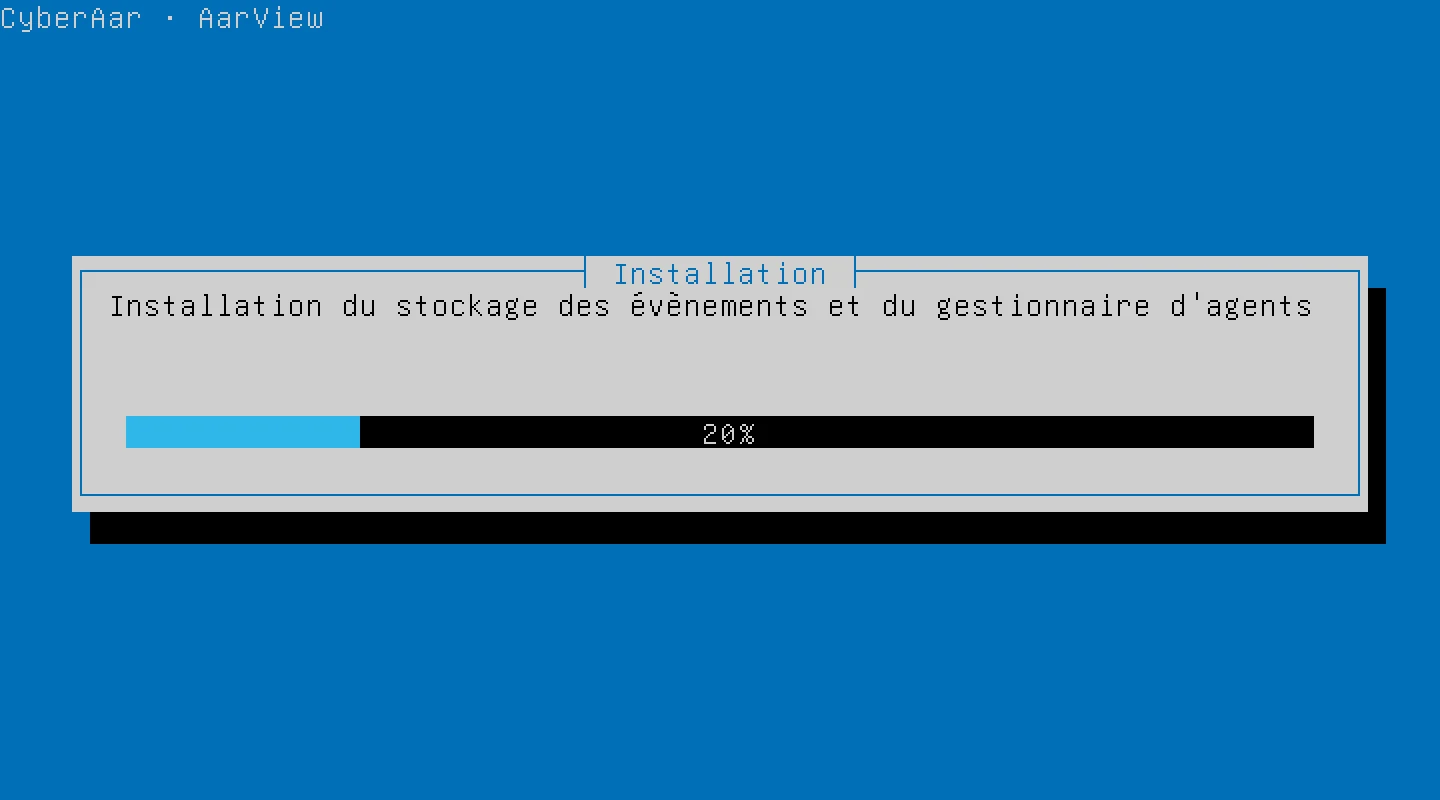
- Installation: a progress bar follows each step, 10 to 20 minutes depending on the hardware.
3. The end of the installation
The last screen gives everything you need next:
- the address to open in the browser (
https://followed by the machine’s address); - the fingerprint of the machine’s certificate, to compare with the one the browser shows;
- the account to sign in with: the administrator e-mail;
- the instance id, needed for the evaluation licence.
4. First sign-in
- Open the address in your browser. The certificate is issued by an authority the machine created itself: the browser says so. Compare the fingerprint the browser shows with the one on the last screen before going on.
- Sign in with the AarView administrator’s e-mail and password.
- Enrol a second factor (an authenticator app). It is mandatory from the first sign-in.
- The dashboard shows getting started: licence, data, team accounts, each step leading to its page.
For the evaluation licence, send the instance id to CyberAar by replying to the message that brought you the download link, then install the key you receive from the Licence page. Until then, sign-in works and each data page says that the licence is missing. See Licence.
5. Connect your first hosts
The CyberAar agent packages, for Linux (Debian, Ubuntu, RHEL and derivatives) and Windows, are on the machine. The CyberAar agents: installation option of the machine’s menu shows the commands, with the machine’s address already filled in, and where the files are. To copy them to your hosts, enable SSH from the same menu, then disable it.
Hosts reach the machine on TCP ports 1514 and 1515 and UDP port 1514. Their alerts then arrive in AarView.
The machine’s menu
Once the installation is over, the machine’s screen shows its menu, protected by the console password. After five errors, you wait a minute.
| Option | What it does |
|---|---|
| Appliance status | services, address, certificate fingerprint, disk and memory, SSH state, time |
| Network and time | change the address or the time servers |
| Enable / disable SSH | closed by default |
| Appliance firewall | the rules in force |
| CyberAar agents: installation | the commands and where the packages are |
| Support bundle | logs and states, with no password or key, to attach to a request for help |
| Restart the services | without restarting the machine |
| Shell (administrator) | for a guided diagnosis |
| Reboot the appliance, Shut down the appliance | with confirmation |
The machine’s security
- Its own firewall opens only port 443 (AarView) and the agent ports, plus SSH when you enable it.
- SSH is closed by default, and the account used to build the image is removed from it.
- Every secret is created on the machine at first start.
- Two-factor authentication is mandatory in AarView from the first sign-in.
What the machine is not
It is an evaluation installation, on a single node. For production, with your own engines and your identity provider, see Requirements and Installation.